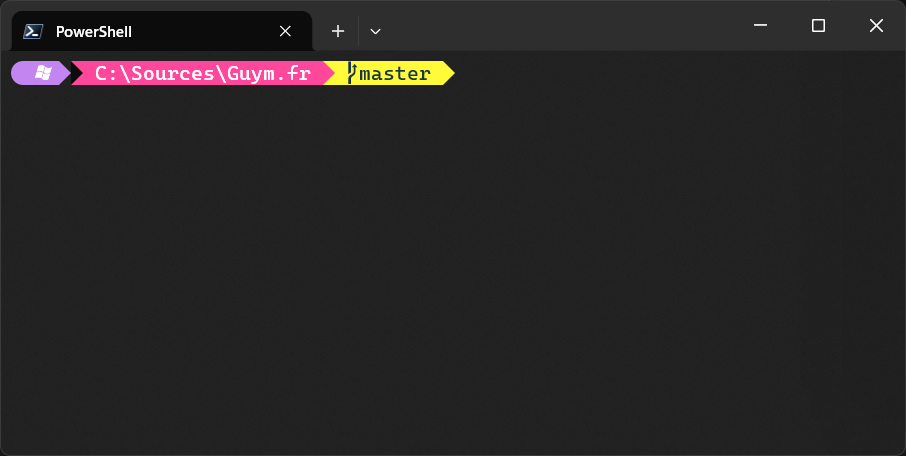
Nerd terminal


Ameliorez l’apparence et les fonctionnalités de votre terminal PowerShell sous Windows avec une police adaptée et Oh My Posh, un framework de personnalisation du prompt.

nerdterminal

police de caractères

Microsoft Cascadia Code sous Windows, notamment dans VS Code et le Terminal.

  1. Installer la police

https://github.com/microsoft/cascadia-code/releases

  • Variants: Cascadia Code (ligatures), Cascadia Mono (sans ligatures), Cascadia Code PL (glyphes Powerline).
  1. VS Code (éditeur)
  • Fichier > Préférences > Paramètres > “Font Family” = Cascadia Code
  • Activer “Font Ligatures”
  • Ou via settings.json:
{
  // ...existing code...
  "editor.fontFamily": "Cascadia Code, Consolas, 'Courier New', monospace",
  "editor.fontLigatures": true
  // ...existing code...
}
  1. VS Code (terminal intégré)
  • Paramètre:
{
  // ...existing code...
  "terminal.integrated.fontFamily": "Cascadia Code PL"
  // ...existing code...
}
  1. Windows Terminal
  • Paramètres > Profiles > Defaults > Appearance > Font face: “Cascadia Code PL” (ou “Cascadia Code”/“Cascadia Mono” selon besoin).
  1. Visual Studio
  • Tools > Options > Environment > Fonts and Colors > Text Editor > Font: “Cascadia Code NF”.

Note: relancer les applications après l’installation de la police.

Terminal avec Ohmyposh

  1. Installer
  • Oh My Posh:
winget install JanDeDobbeleer.OhMyPosh -s winget
  • Police Nerd Font (pour les icônes). Recommandé: CaskaydiaCove (Cascadia patchée):
winget install NerdFonts.CaskaydiaCove
  1. Définir la police dans vos terminaux
  • VS Code (terminal intégré) dans settings.json:
{
  // ...existing code...
  "terminal.integrated.fontFamily": "CaskaydiaCove Nerd Font"
  // ...existing code...
}
  • Windows Terminal: Paramètres > Profiles > Defaults > Appearance > Font face = “CaskaydiaCove Nerd Font”.
  1. Initialiser dans PowerShell
  • Créer/ouvrir le profil:
if (!(Test-Path -Path $PROFILE)) { New-Item -ItemType File -Path $PROFILE -Force }
notepad $PROFILE
  • Ajouter cette ligne puis enregistrer:
oh-my-posh init pwsh --config "$env:POSH_THEMES_PATH\jandedobbeleer.omp.json" | Invoke-Expression
  1. Tester et changer de thème
  • Lister les thèmes:
Get-ChildItem $env:POSH_THEMES_PATH
  • Essayer pour la session courante:
oh-my-posh init pwsh --config "$env:POSH_THEMES_PATH\paradox.omp.json" | Invoke-Expression
  • Appliquer un thème définitivement: remplacez le nom du fichier .omp.json dans votre $PROFILE.
  1. Mise à jour
winget upgrade JanDeDobbeleer.OhMyPosh

Souhaitez-vous que j’applique ces ajouts à votre Font.md ? Voici un patch prêt à coller:

// ...existing code...

## Configurer Oh My Posh (PowerShell)

1. Installer

- Oh My Posh:

```powershell
winget install JanDeDobbeleer.OhMyPosh -s winget
```

- Police Nerd Font (icônes complètes). Recommandé: CaskaydiaCove:

```powershell
winget install NerdFonts.CaskaydiaCove
```

2. Définir la police dans les terminaux

- VS Code (terminal intégré) dans settings.json:

```json
{
  // ...existing code...
  "terminal.integrated.fontFamily": "CaskaydiaCove Nerd Font"
  // ...existing code...
}
```

- Windows Terminal: Profiles > Defaults > Appearance > Font face = “CaskaydiaCove Nerd Font”.

3. Initialiser dans PowerShell

- Créer/éditer le profil:

```powershell
if (!(Test-Path -Path $PROFILE)) { New-Item -ItemType File -Path $PROFILE -Force }
notepad $PROFILE
```

- Ajouter:

```powershell
oh-my-posh init pwsh --config "$env:POSH_THEMES_PATH\jandedobbeleer.omp.json" | Invoke-Expression
```

4. Thèmes

- Lister:

```powershell
Get-ChildItem $env:POSH_THEMES_PATH
```

- Tester (session courante):

```powershell
oh-my-posh init pwsh --config "$env:POSH_THEMES_PATH\paradox.omp.json" | Invoke-Expression
```

Note:

- Utilisez une Nerd Font (ex: Cascadia Code NF). Cascadia Code PL n’affiche pas tous les pictogrammes des thèmes.
- Redémarrer VS Code / Windows Terminal après installation.

# L'historique du terminal

PSReadLine ajoute l’édition de ligne, l’autocomplétion, les prédictions et la recherche d’historique à PowerShell. Voici l’essentiel pour l’installer, le configurer et l’utiliser.

- Installer/mettre à jour (PowerShell 5+ ou 7+):

```powershell
Install-Module PSReadLine -Scope CurrentUser -Force
```
  • Utilisation rapide

    • Tab: menu de complétion.
    • Flèche droite: accepter la prédiction.
    • Alt+F: accepter le prochain mot suggéré.
    • Saisir un préfixe + ↑/↓: recherche d’historique par préfixe.
    • Ctrl+R: recherche incrémentale dans l’historique.
  • Conseillé dans $PROFILE (prédictions + raccourcis utiles):

# Ouvrir/éditer le profil
if (!(Test-Path -Path $PROFILE)) { New-Item -ItemType File -Path $PROFILE -Force }
notepad $PROFILE

Ajoutez puis redémarrez le terminal:

Import-Module PSReadLine
Set-PSReadLineOption -EditMode Windows
Set-PSReadLineOption -PredictionSource HistoryAndPlugin
Set-PSReadLineOption -PredictionViewStyle ListView
Set-PSReadLineOption -BellStyle None

Set-PSReadLineKeyHandler -Key UpArrow -Function HistorySearchBackward
Set-PSReadLineKeyHandler -Key DownArrow -Function HistorySearchForward
Set-PSReadLineKeyHandler -Key Tab -Function MenuComplete
Set-PSReadLineKeyHandler -Key RightArrow -Function AcceptSuggestion
Set-PSReadLineKeyHandler -Key "Alt+f" -Function AcceptNextSuggestionWord
  • Optionnel (prédicteur Azure)
Install-Module Az.Tools.Predictor -Scope CurrentUser
# Dans $PROFILE, ajoutez:
Import-Module Az.Tools.Predictor
Enable-AzPredictor -AllSession
  • Diagnostic
Get-PSReadLineOption
Get-PSReadLineKeyHandler | Out-Host -Paging

Souhaitez-vous l’ajouter à votre Font.md ? Voici un patch prêt à coller:

// ...existing code...

## PSReadLine (autocomplétion, prédictions, historique)

1. Installer/mettre à jour

```powershell
Install-Module PSReadLine -Scope CurrentUser -Force
```

2. Configurer dans PowerShell ($PROFILE)

```powershell
if (!(Test-Path -Path $PROFILE)) { New-Item -ItemType File -Path $PROFILE -Force }
notepad $PROFILE
```

Ajouter:

```powershell
Import-Module PSReadLine
Set-PSReadLineOption -EditMode Windows
Set-PSReadLineOption -PredictionSource HistoryAndPlugin
Set-PSReadLineOption -PredictionViewStyle ListView
Set-PSReadLineOption -BellStyle None
Set-PSReadLineKeyHandler -Key UpArrow -Function HistorySearchBackward
Set-PSReadLineKeyHandler -Key DownArrow -Function HistorySearchForward
Set-PSReadLineKeyHandler -Key Tab -Function MenuComplete
Set-PSReadLineKeyHandler -Key RightArrow -Function AcceptSuggestion
Set-PSReadLineKeyHandler -Key "Alt+f" -Function AcceptNextSuggestionWord
```

3. Utilisation

- Tab = menu de complétion
- → = accepter la prédiction
- Alt+F = accepter le prochain mot
- Préfixe + ↑/↓ = historique filtré
- Ctrl+R = recherche incrémentale dans l’historique

4. Optionnel: prédicteur Azure

```powershell
Install-Module Az.Tools.Predictor -Scope CurrentUser
# Dans $PROFILE:
Import-Module Az.Tools.Predictor
Enable-AzPredictor -AllSession
```

5. Aide/diagnostic

```powershell
Get-PSReadLineOption
Get-PSReadLineKeyHandler | Out-Host -Paging
```

// ...existing code...

## Annexes — Options Set-PSReadLineOption (résumé)

### Inspecter vos réglages actuels

```powershell
Get-PSReadLineOption | Format-List *
Get-Help Set-PSReadLineOption -Full
```

### Édition et son

- EditMode: schéma de raccourcis (Windows/Emacs/Vi)

```powershell
Set-PSReadLineOption -EditMode Windows
```

- BellStyle: signal en cas d’erreur (None/Audible/Visual)

```powershell
Set-PSReadLineOption -BellStyle None
```

### Prédictions et complétion

- PredictionSource: source des suggestions (None/History/Plugin/HistoryAndPlugin)

```powershell
Set-PSReadLineOption -PredictionSource HistoryAndPlugin
```

- PredictionViewStyle: rendu (InlineView/ListView)

```powershell
Set-PSReadLineOption -PredictionViewStyle ListView
```

- AcceptSuggestionOnEnter: comportement de Entrée vis‑à‑vis d’une suggestion (ex: Never/Always)

```powershell
Set-PSReadLineOption -AcceptSuggestionOnEnter Never
```

- ShowToolTips: afficher des infobulles (params/descr.) si disponibles

```powershell
Set-PSReadLineOption -ShowToolTips $true
```

- CompletionQueryItems: taille de lot pour les gros jeux de complétions

```powershell
Set-PSReadLineOption -CompletionQueryItems 100
```

### Historique

- HistorySaveStyle: persistance (SaveAtExit/SaveIncrementally/SaveNothing)

```powershell
Set-PSReadLineOption -HistorySaveStyle SaveIncrementally
```

- HistorySavePath: fichier d’historique personnalisé

```powershell
Set-PSReadLineOption -HistorySavePath "$HOME\.ps_history"
```

- MaximumHistoryCount: lignes conservées en mémoire

```powershell
Set-PSReadLineOption -MaximumHistoryCount 5000
```

- HistoryNoDuplicates: éviter les doublons successifs

```powershell
Set-PSReadLineOption -HistoryNoDuplicates $true
```

- HistorySearchCursorMovesToEnd: placer le curseur en fin lors d’une recherche ↑/↓

```powershell
Set-PSReadLineOption -HistorySearchCursorMovesToEnd $true
```

### Affichage et couleurs

- Colors: personnaliser la coloration (clés typiques: Command, Parameter, String, Comment, Keyword, Operator, Type, Variable, Number, Error, Selection, Emphasis, Default, ContinuationPrompt, ListPrediction, InlinePrediction, ListPredictionSelected)

```powershell
Set-PSReadLineOption -Colors @{
  Command = '#c586c0'; Parameter = '#9cdcfe'; String = '#ce9178'
  Comment = '#6a9955'; Error = '#f44747'; Selection = '#264f78'
  InlinePrediction = '#6b6b6b'; ListPredictionSelected = '#ffffff'
}
```

- ContinuationPrompt: prompt pour les lignes multi‑lignes

```powershell
Set-PSReadLineOption -ContinuationPrompt '>> '
```

- ExtraPromptLineCount: lignes réservées sous le prompt (évite le “saut” d’écran)

```powershell
Set-PSReadLineOption -ExtraPromptLineCount 0
```

### Mode Vi (si -EditMode Vi)

- ViModeIndicator: où afficher l’état (None/Prompt/Cursor)

```powershell
Set-PSReadLineOption -ViModeIndicator Cursor
```

- ViModeChangeHandler: action personnalisée au changement de mode

```powershell
Set-PSReadLineOption -ViModeChangeHandler {
  param($mode) if ($mode -eq 'Command') { $host.UI.RawUI.WindowTitle = 'VI: NORMAL' }
  else { $host.UI.RawUI.WindowTitle = 'VI: INSERT' }
}
```

### Divers/avancées

- WordDelimiters: caractères qui délimitent les “mots” (mouvements/suppression)

```powershell
Set-PSReadLineOption -WordDelimiters ' ;,:./\|[](){}"'''
```

- MaximumKillRingCount: taille du “kill ring” (coller plusieurs suppressions)

```powershell
Set-PSReadLineOption -MaximumKillRingCount 50
```

- AddToHistoryHandler: filtrer ce qui entre dans l’historique

```powershell
Set-PSReadLineOption -AddToHistoryHandler { param($line) return -not ($line -match '^\s*$') }
```

- CommandValidationHandler: valider/avertir avant exécution

```powershell
Set-PSReadLineOption -CommandValidationHandler { param($ast) return $true }
```

## Intellisense dans le terminal

```powershell
Set-PSReadLineOption -IntelliSenseEnabled $true


Install-Module -Name CompletionPredictor
```

Ajouter dans $PROFILE:

```powershell
 Import-Module CompletionPredictor
```